What’s new in Microsoft Power BI?
Power BI is a Microsoft application designed to transform your data sources into coherent, visually immersive and interactive insights. The goal is to discover what matters and explore that data dynamically, then share it with whomever you wish.
If you are not familiar with Power BI, I recommend starting by reading our blog. That way, you can come back and discover new possibilities.
Since its creation in 2015, Power BI has continued to evolve, and every month we discover new features and improvements. Microsoft has recently released new updates that have brought a wide range of useful changes—especially visual formatting changes, as well as features to strengthen governance and share datasets between tenants and with external users. This has enabled faster service improvements, but it has also generated a lot of information, making it difficult for some people to keep up with all the current possibilities.
Today, we have decided to create a list of the main new Power BI features from recent months and outline them below.
What’s new:
- Viewing Power BI files in OneDrive and SharePoint – Since November
- Adding interactive data in your PowerPoint slides – Since May
- Discovery feature for B2B content – Since September
- In-place dataset sharing with Power BI – Since September
- Translation support for composite models on datasets – Since September
- Information protection update – Since September
Viewing Power BI files in OneDrive and SharePoint
In the new November update, we can find this feature that allows Office users to view or even edit Power BI reports from OneDrive and SharePoint without having to download Power BI Desktop. To do so, you simply need to make sure you have enabled the correct option before sharing the document. This also allows you to restrict this benefit to other collaborators if you wish.
Previously, users could not preview or make changes to the report from the PBIX file without downloading the report and Power BI Desktop. This can be very convenient for those who prefer collaborating with OneDrive or SharePoint files. It makes collaboration on Power BI reports easier while enabling instant data viewing.
Adding interactive data in your PowerPoint slides
There is a new feature called the “Add-in” in PowerPoint that allows users to add live, interactive data from Power BI. This lets you add report pages to your PowerPoint slides individually, with real-time, interactive data. You will also be able to interact with visuals and filters. This will allow you to create a PowerPoint presentation that automatically pulls data from your reports without having to refresh your presentation each time. You can also explore the data in PowerPoint while presenting.
This data respects the security roles configured in your Power BI service workspaces. You therefore cannot share the PowerPoint presentation with people who do not have access to the data; otherwise, they will not see anything in the relevant tabs. In addition, you must be connected to the Internet to interact with the report.
Discovery feature for B2B content
Power BI’s B2B dataset sharing feature allows customers to share datasets with external users via Azure Active Directory Business-to-Business (Azure AD B2B).
You can share and configure security roles with external users and even grant them permission to “edit and manage” content if needed. In addition, they can also browse and request access to your organization’s content, or create their own models from it and share the report.
If users get invited to another tenant, they will now see, on their homepage, a new tab called “From external orgs”.
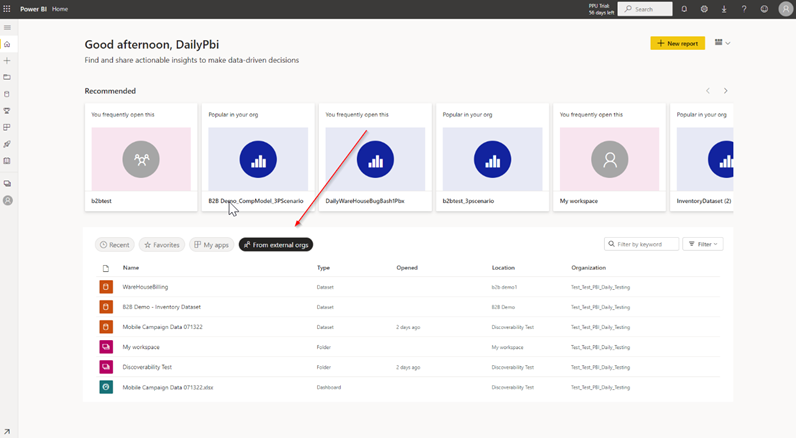
This enables secure distribution of Power BI content to invited users outside the organization while maintaining control and governing access to internal data.
In-place dataset sharing with Power BI
Another way to share content with external users is “in-place sharing”. With the existing B2B capabilities we just discussed in point 3, data providers have already shared data with external partners by making them guest users in their organization via Azure AD B2B. Now, with Power BI in-place dataset sharing, providers can access this shared data from their own tenant.
They can also connect via DirectQuery to create their own composite models and reports.
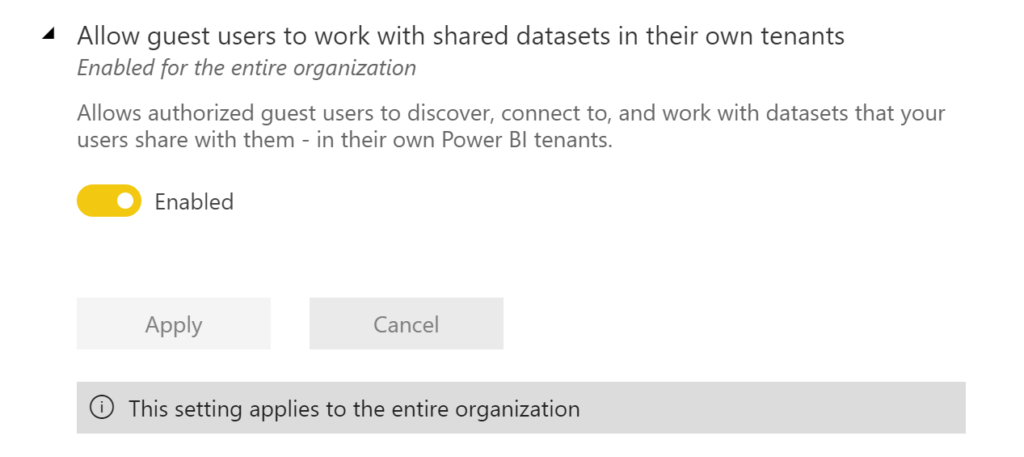
In addition, storage and compute for shared datasets remain the responsibility of the dataset provider. This can have limitations when sharing across different countries, particularly due to applicable data regulations.
Translation support for composite models on datasets
Composite models allow a report to have two or more data connections from different source groups, such as one or more DirectQuery connections and an import connection.
With the September 2022 update, translations are now supported for composite models on datasets and in the Power BI service. This makes it possible to display the tables and columns in your dataset in the user-defined language. Previously, they were ignored. Now, all translations defined in the source will be retained in the composite model, so table and column names will be translated into the user’s language.
This is particularly useful for international companies and their collaborations, as it allows them to interact with data without complications due to language.
Information protection update
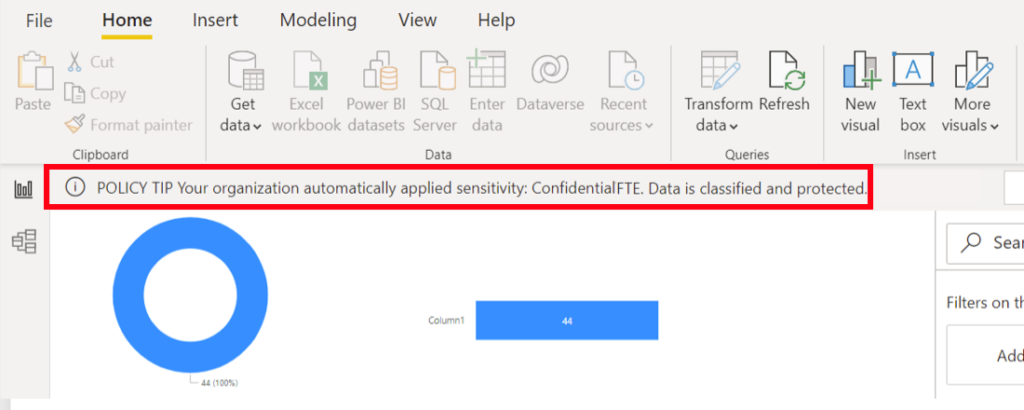
Since October, the sensitivity label applied to your datasets is automatically applied to downloaded PBIX files. The goal is to maintain data classification and protection when they leave the Power BI service. This is an excellent governance improvement. This way, you do not have to think about configuring files downloaded from the Power BI service. You reduce the risks associated with using sensitive data.
You have had an overview of Power BI updates and how they can be used. Please feel free to contact us if you need more details or if you have any questions about this new version at the following addresses: ybusidan@meltone.com / jsaccona@meltone.com
Please feel free to share your thoughts in the comments below. We will be delighted to hear from you.
Let’s discuss your challenges and our solutions
Let’s talk about your project and discover how MeltOne can turn your challenges into concrete, high-performing solutions.